Converting Images to PDF (PixPix)
Combining multiple images into a PDF file
Introduction
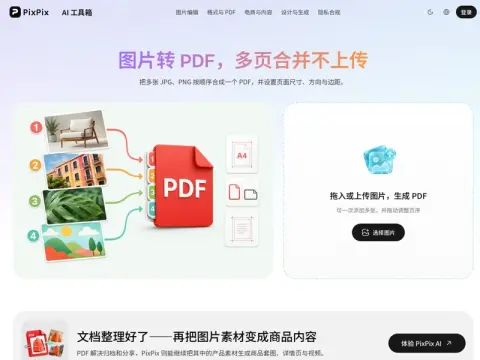
Combine JPG and PNG files into a multi-page PDF, with each image occupying one page.
- Gatu— You can use both formats together; the interface will display both the file name and its thumbnail.
- sorting– Drag to adjust the order of the pages; make sure to check it again before exporting, as this will save you the trouble of having to start over if the arrangement is incorrect.
- Fixed-page layout— Select an appropriate image format, either A4 or Letter size, and set the orientation as well as the margins.
For pure screen reading and archiving purposes, use "adaptive images" – the page size will adjust automatically to match the image size, ensuring no large blank areas appear. The orientation of the image will also change automatically for each individual image. If you need to print or submit the content to an official system, choose A4 paper; in North American regions, Letter size should be used, with enough margins reserved for binding and the physical limitations of the printer.
There is no fixed upper limit to the number of documents that can be processed; it actually depends on the device’s memory capacity. For daily use, compiling dozens of documents is usually sufficient. However, when dealing with over a hundred documents, it is recommended to process them in batches, or to compress each document individually before merging them together. This approach is particularly useful in situations where only PDF files are accepted, such as for submitting reimbursement claims, scanning contracts, submitting assignments, or organizing archived materials.